User manual
Using Omnia
Omnia is a station on an infinite canvas where terminals, AI agents, a browser, records, diagrams and boards sit side by side, connected by links. This manual walks through each part of the app. Use the contents to jump to a feature, or search for a word.
Getting started
On Windows, Omnia comes as the installer omnia-<version>-setup.exe. On
Linux, download omnia-<version>.AppImage, make it executable and open it.
The first time you open the app you get an empty station. Double-click any empty spot to create a terminal, or use + Create in the control panel to add any other kind of node. Everything you do is saved on its own, so closing and reopening the app brings the station back as you left it.
The Manual button in the control panel opens this page in your browser at any time.
The station
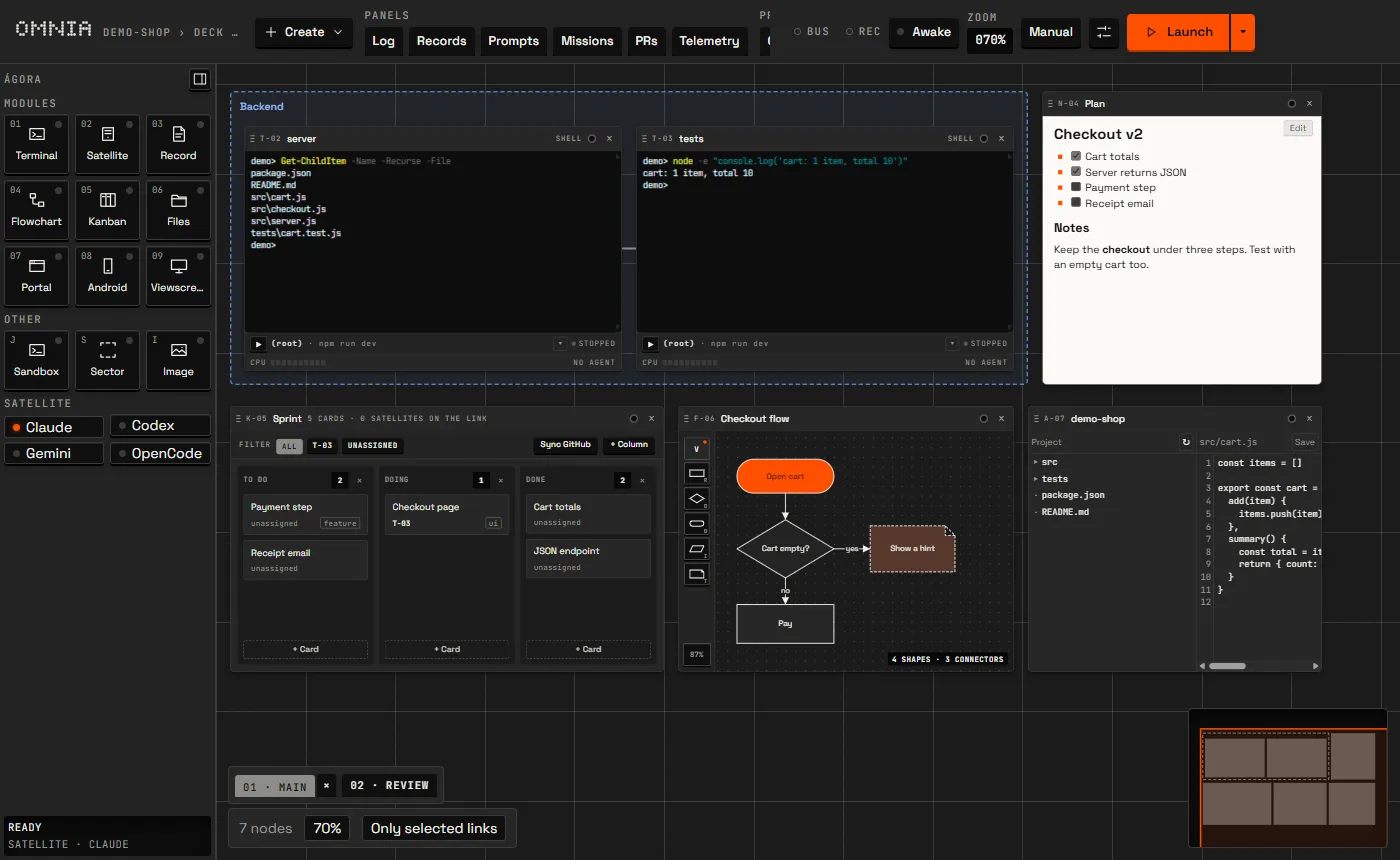
The station is an infinite canvas. Each window on it (a terminal, a record, a browser) is a node. The zoom level, the app version and the node count sit in the bottom-left corner.
| To | Do this |
|---|---|
| Create a terminal | Double-click an empty spot |
| Move the camera | Mouse wheel, two fingers on the trackpad, or drag with the middle button |
| Zoom | Ctrl+wheel, or pinch on the trackpad |
| Select with a box | Drag on the background; hold Ctrl to add to the selection |
| Scroll sideways | Shift+wheel |
| Move a node | Drag it by its title bar |
| Resize a node | Drag its edges or corners |
| Rename a node | Double-click the title (Enter confirms, Esc cancels) |
| Duplicate, rename or close | Right-click the title bar |
Creating nodes
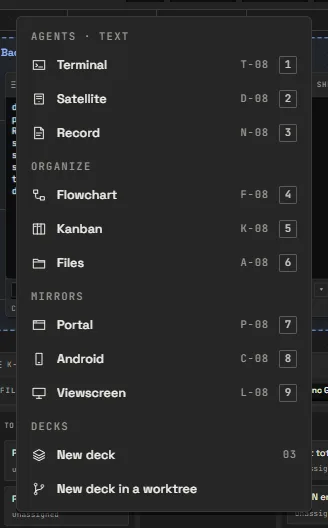
+ Create in the control panel lists every kind of node: Terminal, Record, Image, Portal, Android, Viewscreen, Kanban, Flowchart, Files and Sector, plus New deck. A new node appears in the middle of the screen.
Sectors and layout
A Sector is a colored frame that groups nodes; moving the sector moves everything inside it. Select some nodes and press Alt+S to wrap them in one. To tidy up, Alt+G arranges the nodes in a grid, Alt+B lays them out along their links, and Ctrl+Z undoes the last arrangement. Alt+M shows the minimap.
Decks
A station can have several decks, each with its own nodes, links and camera. The deck tabs are in the bottom-left corner.
- + Create › New deck creates a deck and switches to it.
- Click a tab to switch decks; double-click it to rename.
- × on the active tab removes the deck. It asks first, and closes the deck's nodes.
- Right-click a node's title bar and pick Move to… to send it to another deck.
Terminals on other decks keep running; they are only off screen.
A deck in a git worktree
When the project folder (set in Settings) is a git repository,
+ Create › New deck in a worktree creates a deck with its own branch and
folder. Type the name in the field that appears and press Enter. Omnia creates the
branch omnia/<name> from the project's HEAD, in the folder
<project>.worktrees/<name>, and terminals opened on that deck start
inside the worktree. The tab shows ⎇ before the name.
- Merge, on the active tab, merges the deck's branch into the branch open in the project folder. Uncommitted changes in the worktree block the merge, and a conflict rolls it back so nothing changes.
- × removes the deck, its folder and its branch. If there are uncommitted changes or the branch was never merged, Omnia warns you and asks for a second click.
Terminals and crew
A terminal node runs a real shell. The shell comes from the station settings: automatic, PowerShell 7, Windows PowerShell, cmd, Git Bash or WSL on Windows; bash or zsh on Linux and macOS.
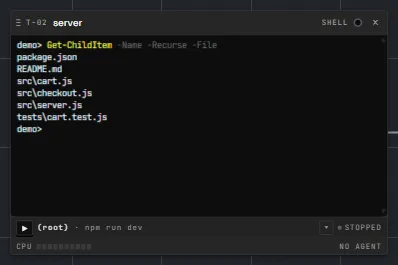
- Ctrl+Shift+C copies the selection and Ctrl+Shift+V pastes. Ctrl+C still goes to the shell.
- Over a terminal, the mouse wheel scrolls its history.
- Closing a terminal asks first, because the shell and its child processes end with it.
Crew members
A terminal can run a coding agent such as Claude Code, Codex or Gemini CLI; a terminal with an agent is a crew member. Pick the agent and its command in Settings › Agents. Omnia then tracks its state (working, waiting for you, idle or down) and its token usage. When the agent is down, Restart satellite in the terminal footer runs the agent command again in the same terminal.
Running your app
The Play strip of a terminal runs the application in its folder. It reads
.vscode/launch.json first, then the scripts in
package.json and the targets of a Makefile. ▶ (or
Ctrl+Enter) runs the configuration and ▾ lists the others.
The chosen command runs in a new node next to the terminal; its badge shows
running, ✓ 0 or ✗ <code>, ↻ restarts it and ■ stops it.
Launch, the orange [ ▶ | ▾ ] key at the end of the control
panel, launches the fleet: it gathers what every terminal on the deck can run. Tick one or
more configurations and Launch opens each in a new terminal; from then on ▶
repeats that choice and ■ stops it.
Sessions
When you close and reopen the app, each terminal comes back in its last folder with its
history (up to 2,000 lines). The shell process itself is new. On Windows, commands that
were running end with the app. To keep a process alive, turn on tmux in the station
settings; it works for WSL terminals (and bash or zsh on Linux and macOS) and needs
tmux installed.
Links and the omnia CLI
Drag from a node's port to another node to connect them with a link. Links tell Omnia who can talk to whom: a terminal only reaches the nodes it is linked to. Deleting a node removes its links.
Every terminal on the station has the omnia command on its PATH.
You, or the agent running in the terminal, use it to talk to the linked nodes:
omnia peers                             # nodes linked to this terminal
omnia tell reviewer "PR is ready"       # deliver a message and return
omnia ask reviewer "can I merge?"       # deliver a question and wait for the reply
omnia reply "yes, merge it"             # answer the oldest pending question
omnia registro append Plan "- [x] done" # write to a linked record
omnia tarefa mover k1a2b3 Done          # move a card on a linked kanban
A message to a busy agent waits in a queue and arrives when the agent finishes. The first
crew member on a deck starts as commander (others are promoted from the node
menu › Promote to commander); a commander can also assemble a fleet with
omnia frota: add crew members, link them, and give each a role and a model.
Save as formation, in the node menu, keeps a fleet to reuse later.
The old command names (omnia nota, omnia banda,
omnia telao, omnia diario, omnia cabo) still work as
aliases. The full command reference is in
docs/cli.md.
Portal and Android
A Portal is a browser node. Use it like any browser, or link a terminal to it and let the agent drive the page. The agent reads the page as an accessibility tree, with a short ref per element, and acts on those refs:
omnia portal novo Gmail mail.google.com   # a portal of its own, linked to you, with its own cookies
omnia portal goto localhost:3000/login
omnia portal snapshot          # title, address and the tree with refs
omnia portal fill e7 maria@example.com
omnia portal click e9
omnia portal screenshot page.png
A terminal can also create the portal: omnia portal novo <name> [url] adds one next to it, already linked, with a separate session (cookies), so each service gets its own login. Add --help to any command to see its usage.
Running JavaScript in the page (portal eval) needs your permission in the app.
A portal must be open on the active deck for the CLI to reach it.
Android
An Android node mirrors a phone or emulator connected through adb. A linked
terminal controls the device with omnia device (tap,
swipe, tree, screenshot), even with the mirror closed.
Each device has to be authorized in the app first.
Records
A Record node is a Markdown file with an editor and a preview. Checklists,
tables and mermaid code blocks render in the preview, and pasted images are saved
as files.
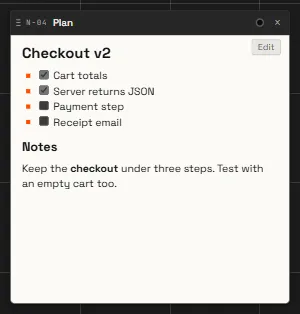
Link a record to a terminal and it becomes a shared board for the crew: agents read it with
omnia registro get and write with set or append, and the
change shows up at once. omnia diagrama <title> <mermaid> creates a record
with a diagram next to the terminal.
Records that belong to you rather than to a station live in the Records panel; see Panels.
Flowchart
The Flowchart node is a diagram you edit with the mouse: shapes (process, decision, start/end, input/output and note) joined by connectors with arrows and labels.
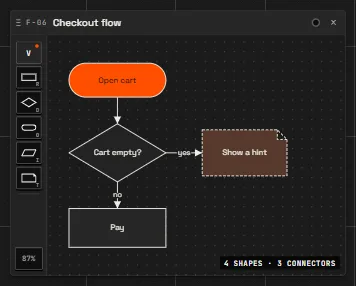
A linked agent reads and edits the same diagram with omnia fluxo ler,
criar and editar, as JSON. For a diagram that only needs to be read,
a mermaid block in a record is simpler.
Kanban
The Kanban node is a board with columns and cards. Drag cards between columns; each card has a title, labels, a description, comments and, optionally, the crew member that owns it.
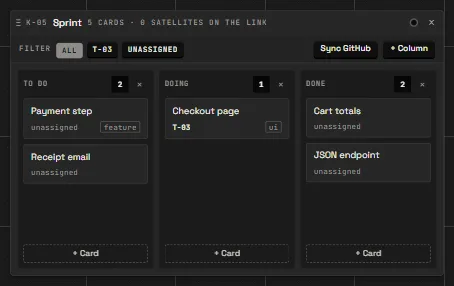
Linked agents work the board from the terminal: omnia tarefa ls,
criar, pegar (take the card), mover,
comentar and largar (release it).
GitHub issues
GitHub, on the board, imports issues from a repository by search, label and
state, up to 100 at a time, using the gh CLI you are already logged in to. With
“Update the issue on GitHub” on, moving an imported card sets the column's label on the issue
and closes or reopens it to match.
Files
The Files node shows the project folder as a tree on the left and an editor on the right. Click a folder to open it and a file to edit it; Ctrl+S or Save writes it. Line endings and the BOM are kept as they were.
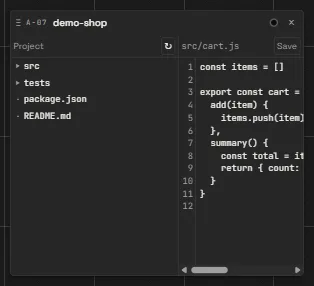
If the file changed on disk after you opened it, Omnia refuses to save instead of
overwriting: use Reload from disk and redo the change. Only text files up to
2 MB inside the project folder open, and .git stays hidden.
Viewscreen (Windows)
The Viewscreen node pins a desktop application's window to the station. In the node, pick an open window, run a command that opens the app (the node finds the window on its own), or open an installed Chromium browser (Chrome, Edge, Brave or Chromium) with a profile of its own.
Link a terminal to it and the agent operates the application with
omnia visor snapshot, click, fill, press,
type and screenshot, without touching your mouse or keyboard.
Panels
The buttons in the control panel open side panels that are not tied to the station. Each one has a shortcut, and pressing it again closes the panel.
Records
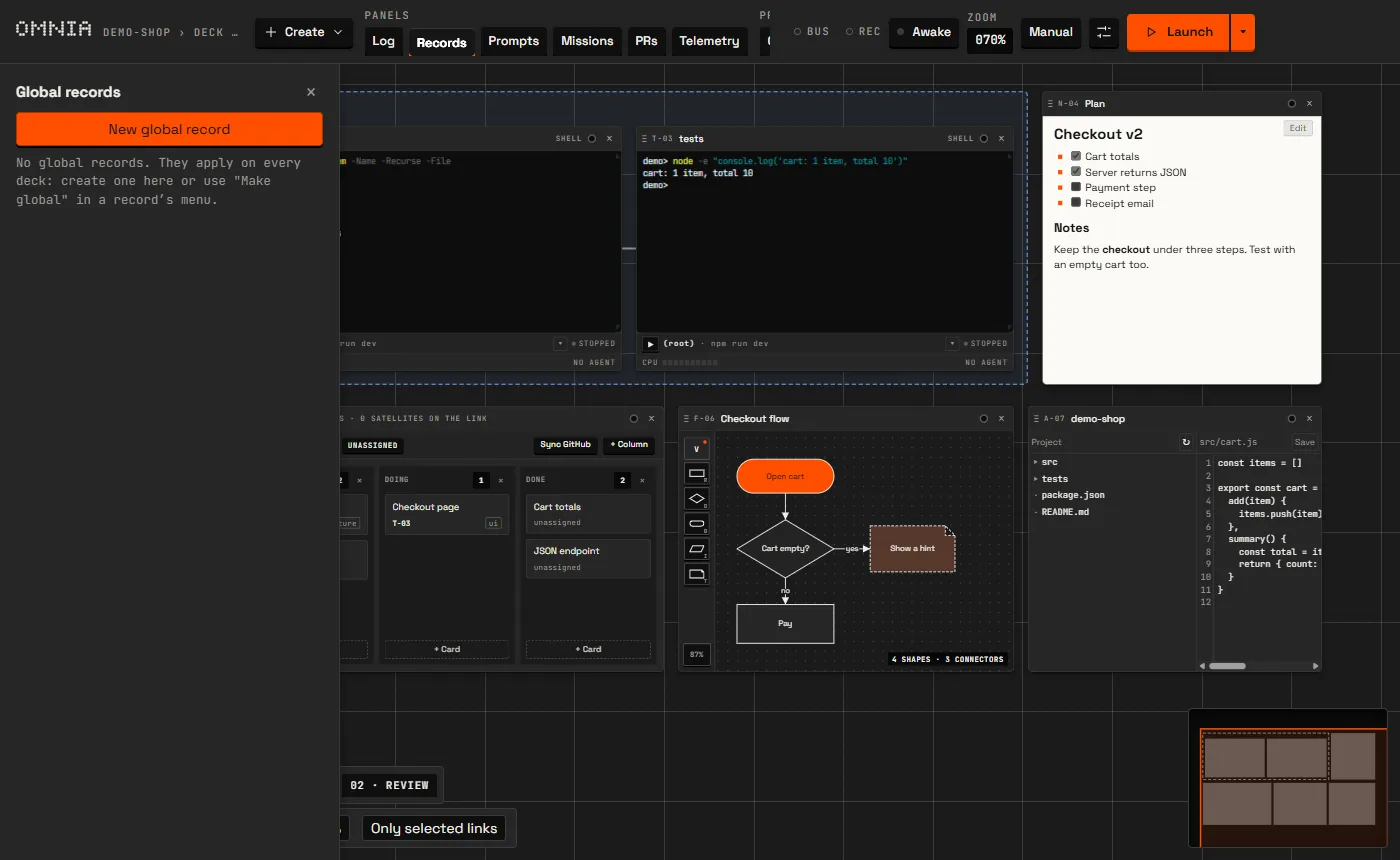
Global records (Ctrl+Shift+N) follow you across stations. Deleted records go to a trash (Ctrl+Shift+L) before they are gone.
Log
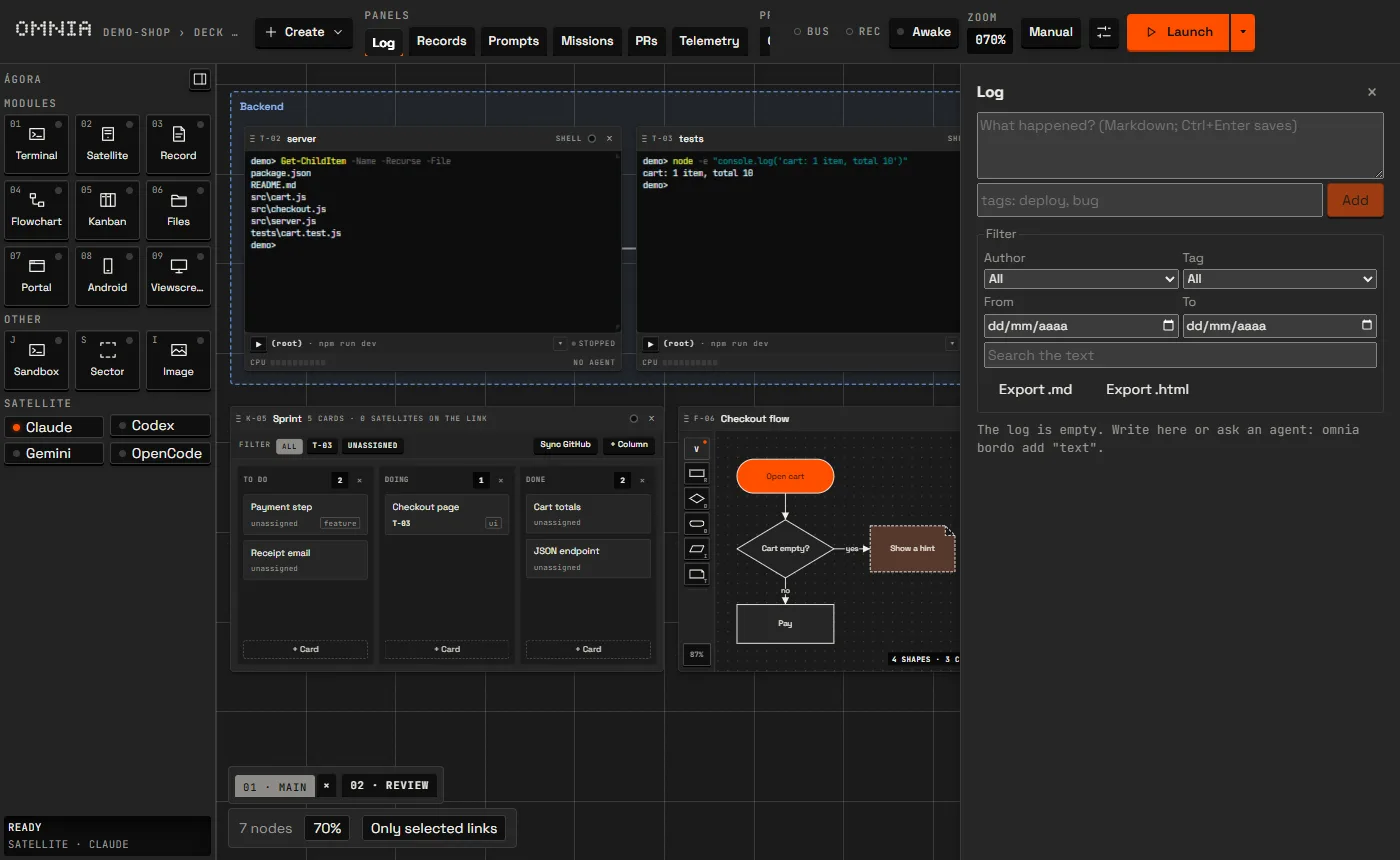
The log (Ctrl+Shift+D) is a running account of the work,
with date, author, tags and attachments. You and the agents write to it (agents with
omnia bordo add), and agents can also attach screenshots of nodes.
Prompts
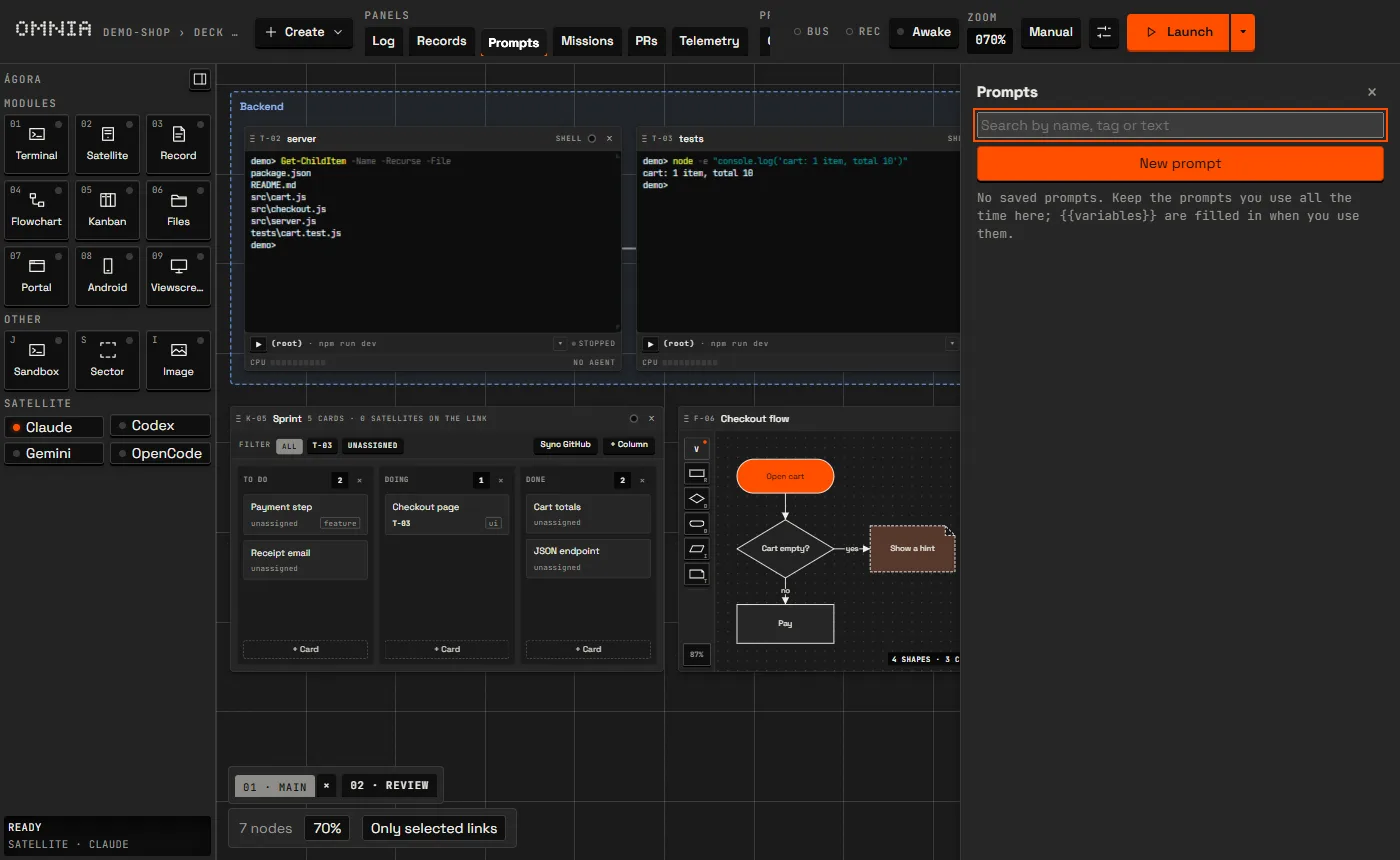
Saved prompts (Ctrl+Shift+O) have a name, text and tags; the
search looks in all three. Insert pastes the text into the selected terminal
without pressing Enter, so you can check it first, and Copy sends it to
the clipboard. {{variable}} placeholders are filled in when you use the prompt.
Missions
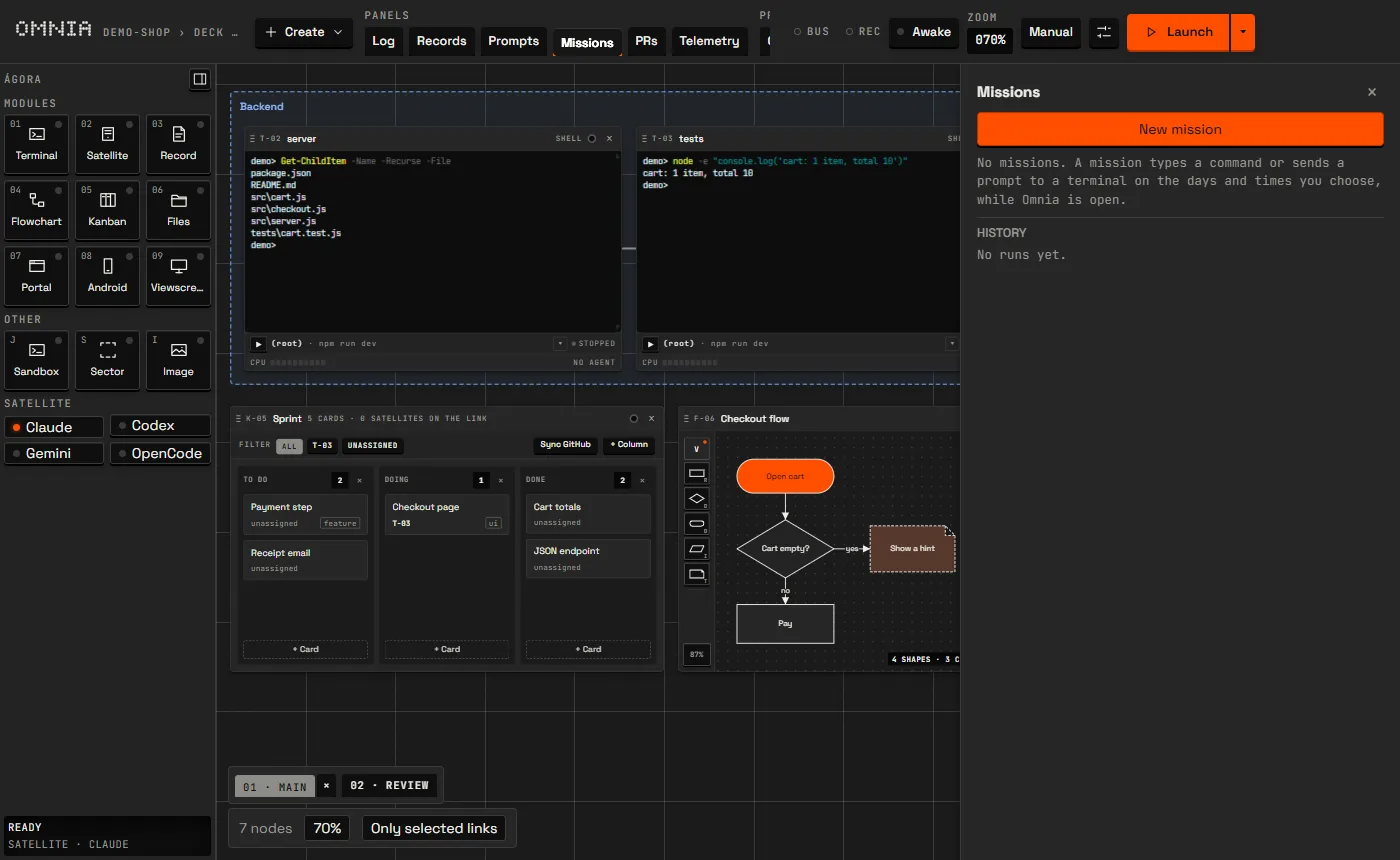
A mission (Ctrl+Shift+H) types a command or sends a prompt to a terminal at a set time on the weekdays you pick, while Omnia is open. Run now runs it without touching the schedule, Pause suspends it, and the history shows each run with ✓ or ✕ and the reason.
Pull requests and telemetry
PRs lists the open pull requests of the project's repository with their CI and
review status, through the gh CLI; Omnia never sees or stores your token. The
Telemetry panel (Ctrl+Shift+U) shows tokens and
estimated cost per crew member; agents read the same numbers with omnia telemetria.
Vault
The vault (Settings › Vault) keeps logins for the sites your agents use. Agents fill
username, password and TOTP code straight into a portal's fields with
omnia cred fill; the secret never passes through the CLI, its output or the
audit log.
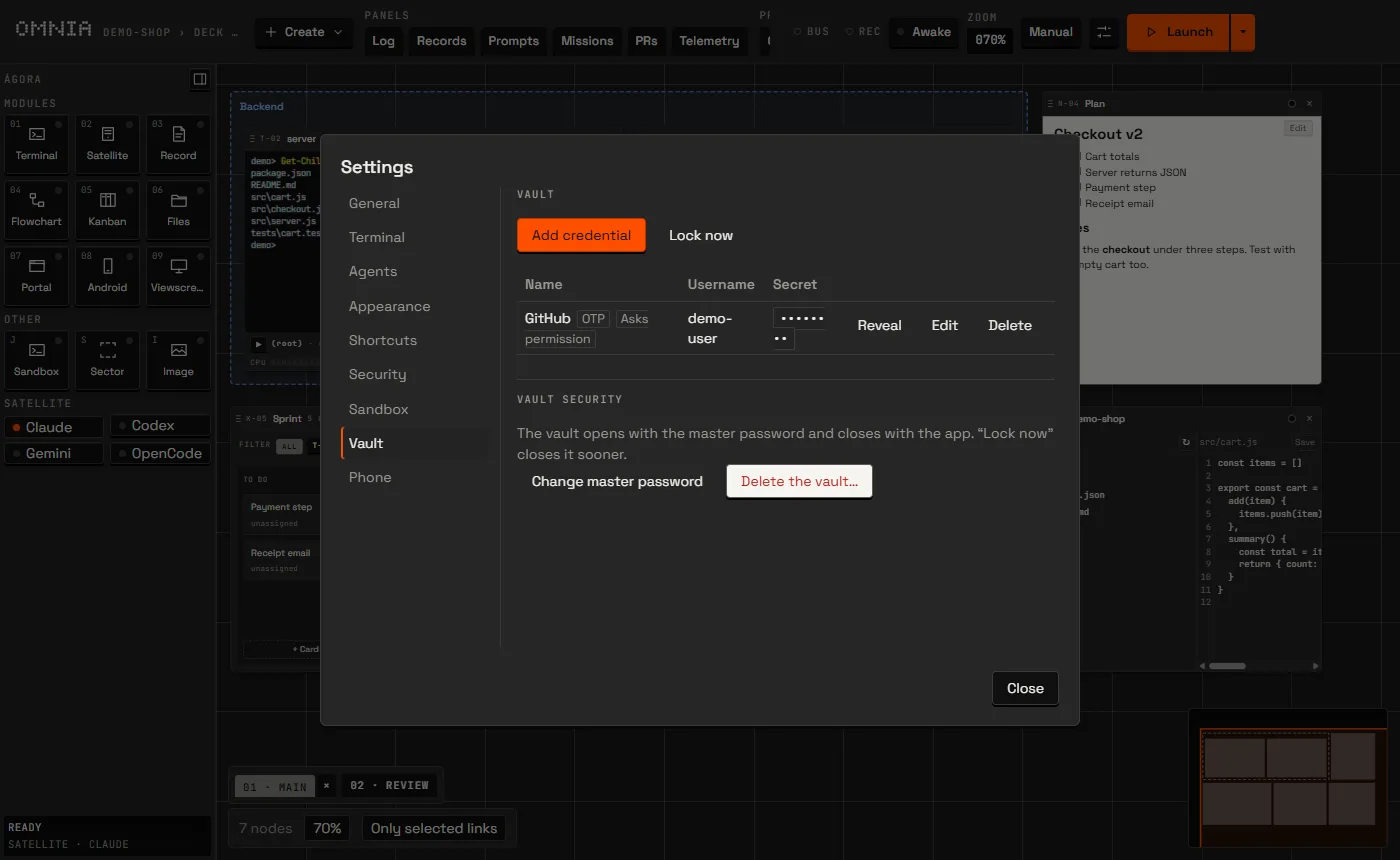
- Credentials are encrypted with a key derived from your master password (at least 8 characters). The key lives only in memory: the vault opens with the password and locks when the app closes.
- Mark a credential Ask my permission on every use and each use shows you the node, the credential and the page. Refusing is the default, and no answer in 2 minutes counts as a refusal.
- A credential only fills portals on the address saved with it, or its subdomains.
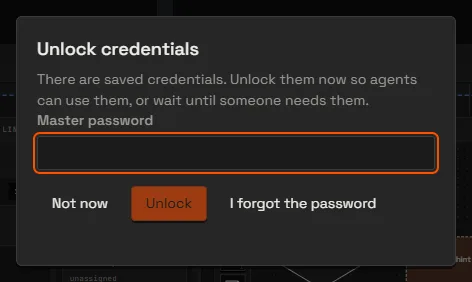
- If you skip the password when the app opens (Not now), agents can still see the name and address of each credential. When one needs a login, Omnia asks you for the password at that moment.
- There is no recovery. Forgot the password deletes every credential and lets you create a new password.
Phone access
You can follow and answer your agents from your phone, at home or away, without opening ports on your router. Omnia uses Tailscale, a private network between your devices, and only accepts phones you pair.
- Install Tailscale on the PC and on the phone, logged in to the same account.
- In the Tailscale admin console, turn on MagicDNS and HTTPS Certificates.
- In Settings › Phone, tick Allow phone access and wait for it to go live.
- Click Pair phone, scan the QR code with the phone and give the phone a name.
The QR code works once and lasts 2 minutes. Each paired phone is listed in Settings › Phone, and Revoke cuts its access at once.
On the phone you see the crew members of every deck with their state. Tap one to read its recent output, answer its prompts (approve, refuse and the other quick replies), send a message, dictate it, or attach photos and files. The bottom bar also opens your kanban boards and the log. Use Add to Home screen in the phone's browser to open it like an app.
Sandbox
A sandboxed terminal runs inside a Docker container, so an agent cannot touch the rest of your machine.
- Install Docker (Docker Desktop on Windows and macOS, Docker Engine on Linux) and keep it running.
- In Settings › Sandbox, choose the image and the network. The image needs the agent you use and a shell.
- Create the terminal with New terminal in the sandbox from the command palette. The node gets a sandbox badge.
Without Docker the terminal shows why and opens no shell at all: the sandbox never falls back to a normal shell. Be careful with links, though: a sandboxed agent can still send messages to the terminals linked to it.
Settings
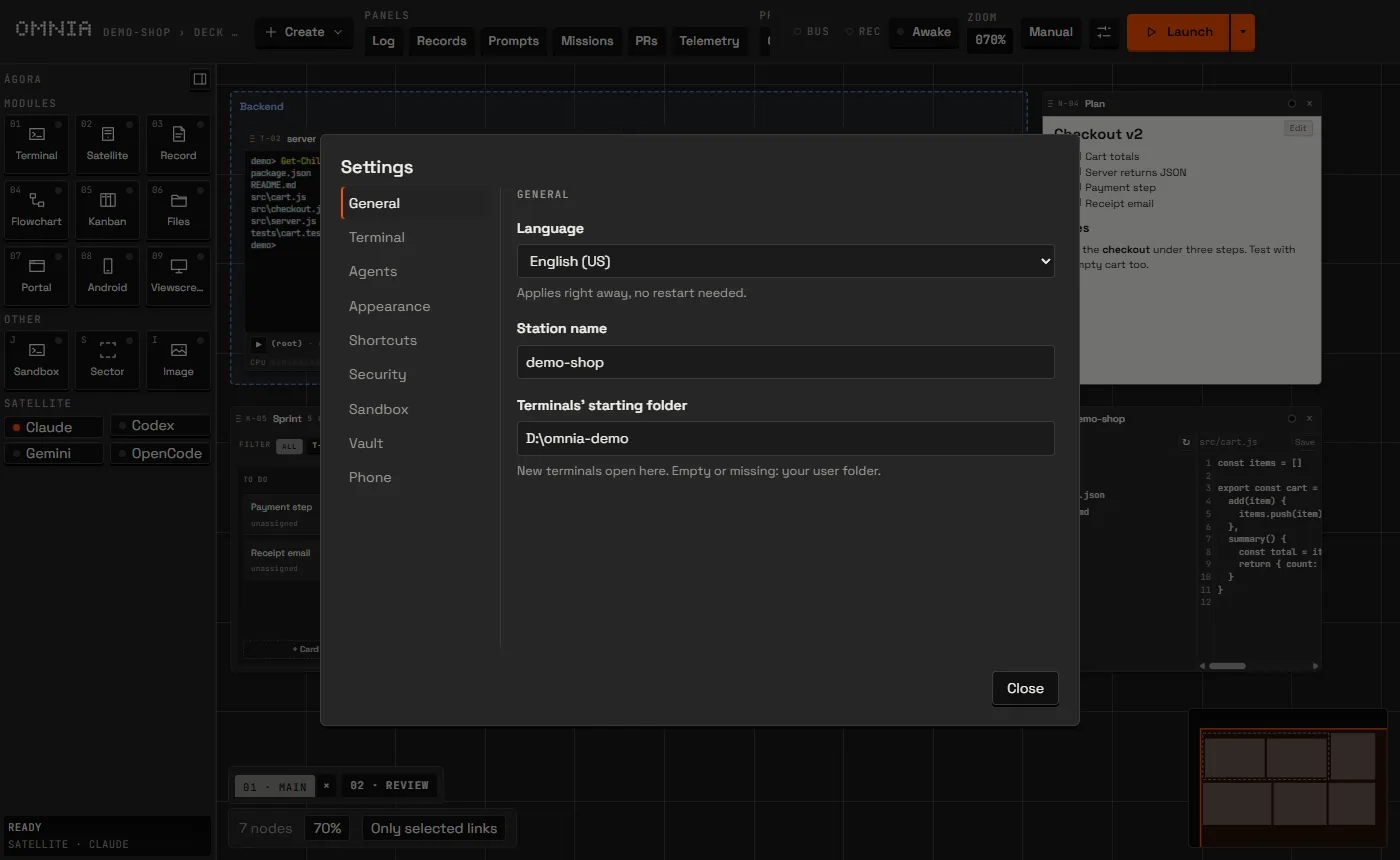
Open Settings with the Settings button in the control panel or Ctrl+,. The sections are General (the project folder and the station), Terminal (the shell and tmux), Agents, Appearance (light, dark or follow the system), Shortcuts, Security, Sandbox, Vault and Phone.
Your data and updates
Everything is stored in the app's data folder: %APPDATA%\omnia on Windows and
~/.config/omnia on Linux.
| Path | Contents |
|---|---|
workspace.json | The station, with a backup in workspace.json.bak |
rotinas.json | Missions and their run history |
prompts.json | Saved prompts |
sessions/ | History and folder of each terminal |
logs/ | omnia.log and up to 5 older files of 1 MB each |
diagnostics/ | Diagnostic bundles |
The log masks API keys, tokens, passwords and the name of your user folder before writing. To report a problem, attach a diagnostic bundle: it holds versions, the system, a node count per kind (no titles or paths) and the end of the logs.
Updates
The installed app checks for updates when it opens and every 4 hours. The new version downloads in the background, then Omnia asks whether to restart now or install when you quit. On Linux, only the AppImage updates itself.
Keyboard shortcuts
Ctrl is Cmd on macOS. Any of these can be changed, or turned off, in Settings › Shortcuts.
| Shortcut | Action |
|---|---|
| Ctrl+K | Open the command palette |
| Ctrl+Shift+F | Search nodes, records, terminals and portals |
| Ctrl+, | Open Settings |
| Ctrl+Shift+N | Records panel |
| Ctrl+Shift+D | Log |
| Ctrl+Shift+H | Missions |
| Ctrl+Shift+O | Saved prompts |
| Ctrl+Shift+U | Telemetry panel |
| Ctrl+Shift+L | Records trash |
| Ctrl+Shift+P | Presentation mode |
| Alt+G | Arrange in a grid |
| Alt+B | Arrange along the links |
| Alt+H / Alt+Shift+H | Vertical / horizontal hierarchy |
| Ctrl+Z | Undo the last arrangement |
| Alt+S | Group the selection into a sector |
| Alt+M | Show or hide the minimap |
| F | Expand the selected node |
| Ctrl+B | Collapse or open the Hangar |
| Ctrl+Enter | Run the terminal's Play configuration |
| Ctrl+Shift+C / V | Copy / paste in a terminal |